
Some creators and event hosts want to earn money from their live broadcasts without building a full control room. Pairing mobile multi-camera production with a ticketing gateway makes that possible. Here, selling tickets to a livestream with Switcher Studio is broken down into practical steps, from setup to launch day.
Switcher Studio is a mobile-first production hub. It links wireless cameras, mixes angles, adds graphics, and sends the finished feed to a private destination. Independent educators, performers, and small organizers who want an affordable, portable production setup tend to find it a good fit. Our reviewers at Top App Review Sites assess tools like this to help you decide whether the workflow matches your goals.
This guide walks through the steps needed to produce and sell a ticketed broadcast. It also covers the situations where a different tool may serve you better.
Quick verdict: With an overall score of 8.0/10, Switcher Studio suits creators who want multi-camera broadcasts on portable devices without dedicated hardware. It is less suitable for teams that need a fixed enterprise control room.
| Metric | Details |
|---|---|
| topappreviewsites score | 8.0/10 |
| Best for | Creators and organizations seeking multi-angle live production on portable devices with gated audience access |
| Not ideal for | Operations requiring dedicated hardware switchers or non-mobile infrastructure |
| Key strengths | Wireless multi-camera switching, on-screen asset overlays, and adaptable streaming destination controls |
| What to check before buying | Review official plan terms to confirm ticketing transaction handling, destination support, and streaming permissions |
1. How topappreviewsites Reviewed Switcher Studio
This review looks at what Switcher Studio is built to do, who it serves, and how it compares with similar tools. We used seven criteria: features, ease of use, pricing and value, integrations, audience fit, support, and competitive position. Plans, prices, and limits change often, so we point out what to confirm on the official website before you buy. This article was researched and drafted with the help of AI tools, then reviewed and edited by the topappreviewsites Editorial Team.
2. Prerequisites for Ticketed Livestreaming
A gated broadcast requires preparation across production, ticketing, and delivery. Understanding collaboration and productivity workflows helps your team coordinate production and audience management before going live.
2.1. Establishing a Private Video Destination
To sell admission, you must limit access so that only paying ticket holders can watch. General broadcast tools send signals to open destinations, while gated events need private embeds, password-protected pages, or paywall-enabled destinations. Check the official Switcher Studio website to confirm which private streaming methods and custom destinations your plan supports.
2.2. Selecting a Ticketing and Registration Service
Most livestream production tools handle the audio and video mix rather than payments. Event producers usually connect an external ticketing gateway or registration platform to process attendee payments. Confirm on the official service pages how attendee authentication links to your broadcast player, so unauthorized viewing links are blocked.
2.3. Preparing Production Equipment and Network Stability
Multi-camera setups depend on a stable wireless network and consistent upload bandwidth. Because mobile devices communicate over local connections in wireless workflows, a dedicated router and an uncrowded Wi-Fi channel are recommended. Test your bandwidth in advance to confirm the venue can support outbound streaming without dropped frames.
3. Getting Started Workflow: How to Sell Tickets to a Livestream with Switcher Studio
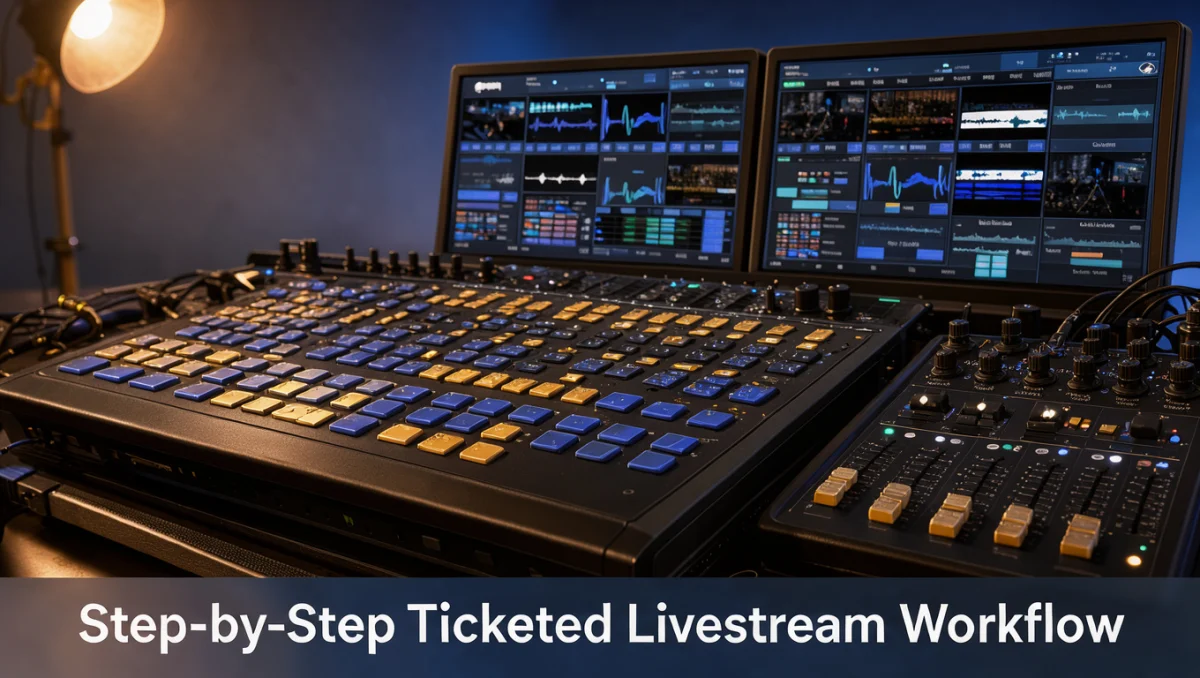
Monetizing a broadcast means coordinating your production setup with your payment and viewing gateway. Following a structured sequence prevents technical problems on event day.
3.1. Step 1: Set Up Your Ticketing Page and Access Gate
Start by configuring the ticketing platform where attendees buy passes. The provider generates a secure page where viewers enter payment details and receive individual access links or embed codes. Make sure the viewing destination is hidden from public search indexing before ticket sales begin.
3.2. Step 2: Configure Custom Streaming Endpoints
Connect your production switcher to your gated destination using standard streaming destination settings. In Switcher Studio, you configure output settings to send video to the private viewing page or gatekeeper service. Confirm in the official Switcher Studio documentation which output protocols and custom destination settings match your event gatekeeper.
3.3. Step 3: Connect Camera Angles and Visual Assets
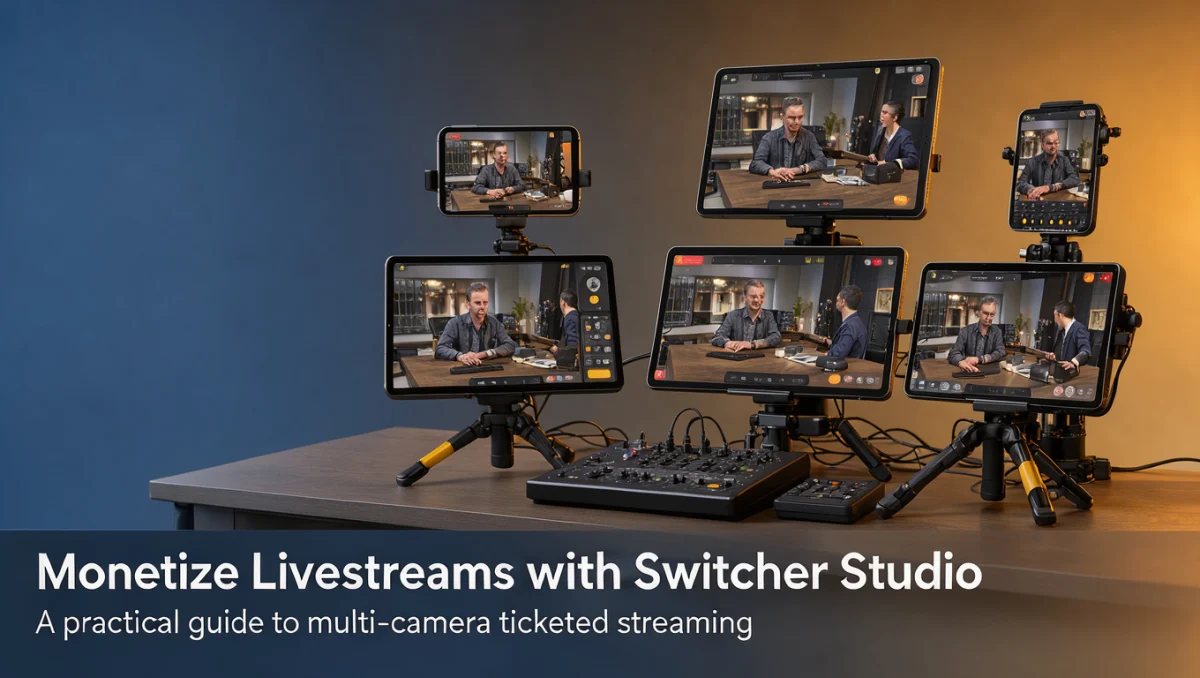
Position your primary and secondary mobile cameras around the stage. Switcher Studio links mobile cameras wirelessly into a central mixing hub, so operators can switch angles, add graphics, and display title slides. Load logos, presentation slides, and sponsor banners into the asset library before showtime.
3.4. Step 4: Run an End-to-End Private Test Broadcast
Always run an unannounced rehearsal before welcoming paying ticket holders. Buy a test pass through your ticketing page, start a private broadcast in Switcher Studio, and confirm the feed renders cleanly in the protected viewer interface. Check audio sync, graphic transitions, and playback stability on both desktop and mobile devices.
3.5. Step 5: Launch the Live Event and Manage the Stream
On event day, start the outbound feed several minutes before the scheduled time and show a welcome graphic or countdown slate. As paying viewers enter the gated player, switch camera angles smoothly to follow speakers or performers. Keep a secondary monitor open to confirm output delivery and watch viewer feedback.
4. Best Practices for Paid Virtual Events
Paid broadcasts need professional production standards and proactive communication with attendees.
4.1. Prioritize Audio Quality Above Video Resolution
Viewers often tolerate minor video fluctuations, but poor audio drives them away quickly. Use external microphones, wireless transmitters, or a line input from your sound mixer into your primary capture device. Monitor audio levels throughout the broadcast to prevent distortion.
4.2. Provide Clear Instructions for Ticket Holders
Virtual attendees need simple instructions on how and when to join. Schedule automated reminder emails through your ticketing platform with direct login links, system requirements, and troubleshooting tips. A dedicated support contact reduces confusion right before the stream starts.
4.3. Plan for Stream Redundancy
Internet drops can disrupt a ticketed broadcast and lead to refund requests. Arrange a secondary connection, such as a dedicated mobile hotspot, that can take over if the venue internet fails. Keep backup devices charged and ready to swap into the camera array if hardware problems appear.
5. Common Mistakes to Avoid When Monetizing Streams
Avoiding common livestream errors protects your brand and prevents revenue loss.
5.1. Streaming to Public Outlets by Mistake
Broadcasting to open social channels instead of private endpoints undermines ticket sales. Double-check your destination output inside Switcher Studio before starting the broadcast. Reserve public channels for promotional teasers rather than full event coverage.
5.2. Overlooking Payment and Processing Fees
Ticketing and payment processors deduct fees from ticket revenue. When budgeting, account for platform percentages, transaction fees, and any add-on broadcasting costs. Review the processor's fee schedule so you can price tickets effectively.
5.3. Neglecting Post-Event Access for Replays
Many buyers expect to watch recordings later. Make sure your workflow records the broadcast locally or archives it on your host server. Confirm how your platform handles on-demand replay access for verified purchasers after the live event ends.
6. Who Should Use Switcher Studio for Ticketed Streaming
The right video software depends on production scale, physical mobility, and venue structure.
6.1. Independent Educators and Workshop Leaders
Solo operators and trainers benefit from streamlined mobile production. Switcher Studio lets one person switch camera views, share slides, and stream lessons directly to paid student portals without a large crew.
6.2. Musicians and Performing Artists
Independent bands and performers hosting ticketed living-room or small-venue concerts can place mobile devices at different angles around the stage. The portable setup delivers a multi-camera concert experience with minimal equipment.
6.3. Small Conferences and Corporate Presenters
Regional business groups, nonprofits, and event organizers offering hybrid or virtual admission can deploy portable production kits. They produce clean, branded presentations without the cost of renting broadcast trucks.
6.4. Who Should Consider Other Production Tools
Facilities that rely on traditional broadcast cabling, fixed studio control desks, or complex capture hardware should look at dedicated hardware switchers. Teams that need broadcast automation across permanent studio rooms may find specialized desktop switchers a better match for their infrastructure.
7. FAQ
7.1. What factors determine whether mobile video switching fits a virtual event?
Mobile switching suits events that need flexible camera placement, quick physical setup, and portable equipment. If your event moves between venues or needs multi-angle coverage without extensive cabling, a mobile production hub is practical.
7.2. What should buyers check regarding ticketing fees before choosing a platform?
Check payment gateway transaction percentages, merchant account requirements, and service fees on the official ticketing provider websites. These deductions affect your net profit per ticket, so transparent fee structures are essential for financial planning.
7.3. What steps ensure ticket buyers get reliable access to private streams?
Automated confirmation emails with single-user access links or embedded private portals help attendees reach the broadcast smoothly. Clear connection instructions and a pre-event technical checklist help viewers confirm browser compatibility before the event.
7.4. What technical criteria should broadcasters verify before streaming on venue Wi-Fi?
Verify sustained upload speeds, local network latency, and channel interference on the venue network. In multi-camera wireless setups, placing devices on an isolated network band prevents stuttering and keeps camera feeds stable.
7.5. What considerations help choose between live interaction and recorded replays?
Workshops, live Q&A segments, and real-time networking need a stable live broadcast. If the content is mainly lectures with little interaction, offering ticketed on-demand recordings alongside the live session adds convenience for international attendees.
8. Final Verdict
Learning how to sell tickets to a livestream with Switcher Studio gives independent creators and organizations a flexible way to earn from live video. By combining portable multi-camera switching with a dedicated ticketing gateway, hosts can produce dynamic broadcasts without traditional studio overhead. Check the official Switcher Studio pricing and plan comparison pages to confirm streaming output permissions and integration options that fit your monetization strategy.
| Criterion | Score /10 | Reason |
|---|---|---|
| Features | 8.0/10 | |
| Ease of Use | 8.5/10 | |
| Pricing and Value | 7.5/10 | |
| Integrations | 7.5/10 | |
| Audience Fit | 8.5/10 | |
| Support | 8.0/10 | |
| Competitive Position | 8.0/10 |
Overall score: 8.0/10
For independent creators, artists, and boutique event organizers who want agile live video production, Switcher Studio is an adaptable tool for gated events. Review the official Switcher Studio documentation before your event to confirm destination compatibility and technical prerequisites.
Find more software evaluations and buyer guides at Top App Review Sites to make informed technology decisions. For questions about live streaming workflows or tailored guidance, reach out through our contact page or follow us on LinkedIn.