
topappreviewsites may earn a commission when you buy through links on this page, at no extra cost to you. Our ratings remain independent.
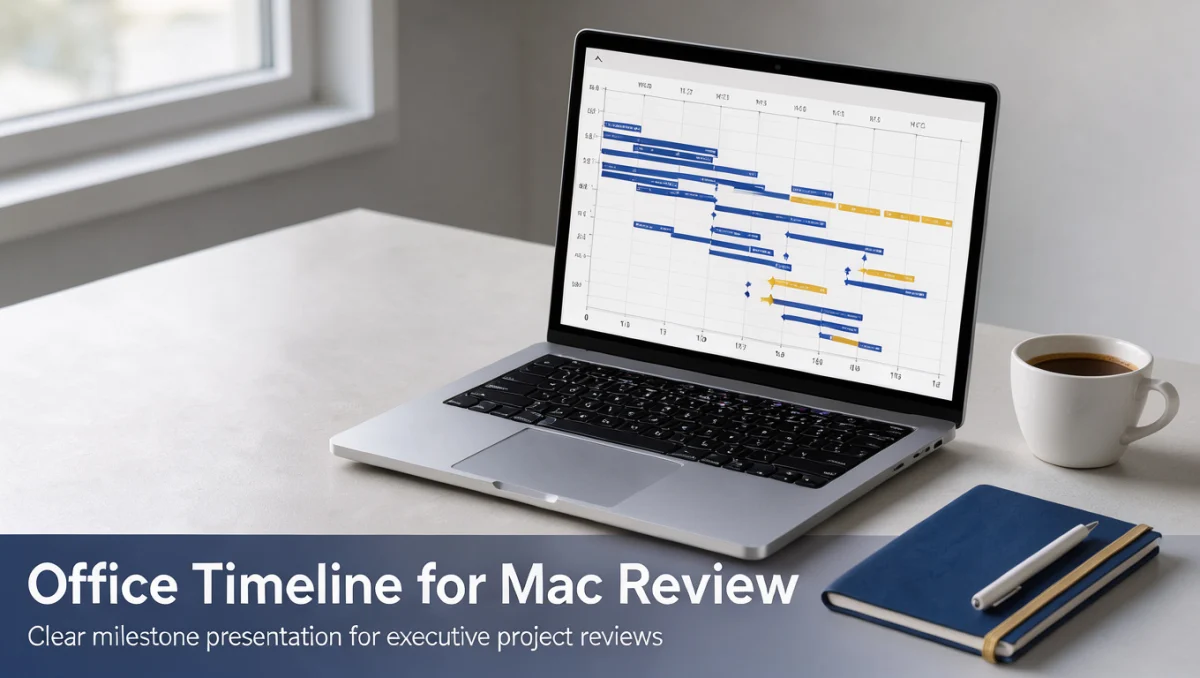
Executives rarely have time to decode dense project spreadsheets, so presenters need a fast way to turn milestones into a clean visual story. That is where a dedicated timeline tool earns its place. Our office timeline for mac evaluation examines how the software converts schedules into slide-ready graphics, and where it stops being the right choice.
Picking a presentation timeline tool means weighing platform fit, design control, and how easily charts can be shared with a team. Many project professionals lose hours rebuilding Gantt-style charts by hand or wrestling them into slide templates. The sections below explain how the product addresses those pain points, so you can decide whether it suits your reporting needs or whether a different approach is the better match.
Quick verdict: Scoring 7.6 / 10 in our evaluation, Office Timeline suits project managers, consultants, and corporate presenters who need visual milestones and clean timelines for business decks. It is less suitable for teams that need task assignment engines or continuous resource tracking to replace enterprise scheduling software.
| Metric | Summary |
|---|---|
| topappreviewsites score | 7.6 / 10 |
| Best for | Presenters who communicate project schedules through visual slide decks |
| Not ideal for | Operations managers requiring continuous team workload tracking |
| Key strengths | Visual milestone presentation and executive roadmap layouts |
| What to check before buying | Confirm official operating system compatibility and available deployment options |
1. How topappreviewsites Reviewed Office Timeline
This review covers what Office Timeline is built to do, who it serves, and how it compares with similar tools. We applied seven topappreviewsites criteria: features, ease of use, pricing and value, integrations, audience fit, support, and competitive position. Plans, prices, and limits change often, so confirm current details on the official website before purchasing. This article was researched and drafted with the help of AI tools, then reviewed and edited by the topappreviewsites Editorial Team.
2. What Is Office Timeline and Who Is It for
Office Timeline is a project schedule visualization application created by Office Timeline LLC. It turns milestone tracking and task dependencies into graphic summaries for client presentations and management reviews. Full project management suites focus on granular hour logging, resource balancing, and daily task queues. Timeline visualization software focuses on condensing that information for audiences who need an executive overview rather than operational detail.
Organizations often adopt specialized presentation utilities when their standard project systems produce charts that are too dense for boardrooms or client meetings. Forty pages of spreadsheets tend to confuse leadership, while a clean graphic timeline shows key delivery dates at a glance. Teams managing corporate projects use visual summaries to keep cross-functional stakeholders aligned on shared target dates.
When choosing visual roadmap utilities within the broader Collaboration & Productivity space, buyers should separate operational tracking platforms from graphic reporting engines. Office Timeline deliberately focuses on graphic presentation, acting as a bridge between technical planners and executives who judge progress through high-level milestones.
3. Core Features of Office Timeline

Understanding the main capabilities helps buyers decide whether the toolset matches their everyday reporting obligations. The software organizes project details into presentation-ready visuals through several functional areas.
3.1. Visual Milestone and Task Generation
The core function of timeline creation tools is generating sequential visual indicators for tasks and significant achievements. Users define phase durations, mark key delivery dates, and position flags along a chronological horizontal axis. Presenters can color-code workstreams, highlight completed phases, and mark upcoming checkpoints without drawing vector graphics by hand.
3.2. Graphic Customization and Template Styling
Presenters need flexibility to align schedule visuals with corporate design guidelines and client expectations. Visual timeline platforms allow adjustments to milestone shapes, connector lines, typography scales, and color palettes. Standardizing these treatments across recurring briefings means executives see a familiar format from one quarterly review to the next.
3.3. Project Data Import and Synchronization
Recreating schedules manually inside graphic applications costs time and invites errors. Dedicated timeline software can ingest task lists and milestone dates from external tables or project files. Presenters can refresh their slides when delivery schedules shift, reducing the manual effort required before major briefings.
4. Ease of Use and Learning Curve
Timeline visualization utilities generally feel intuitive because their interface resembles standard presentation editing environments. Project leaders can assemble an initial roadmap relatively quickly by selecting dates and adjusting milestone text, without formal graphic design training.
The learning curve rises when teams try to show crowded project portfolios on a single slide. Balancing multiple workstreams, dense annotations, and overlapping milestone markers requires careful spatial editing. Presenters must learn filtering techniques to keep slides legible on projection screens.
For professionals accustomed to modern software reviews at Top App Review Sites, usability is a decisive factor when adopting specialized business software. When schedule editing behaves predictably and simplifies visual alignment, presenters spend less time nudging layout boxes and more time refining the substance of their updates.
5. Pros and Cons
Weighing functional advantages against natural constraints shows whether Office Timeline fits your presentation goals.
5.1. Pros of Office Timeline
- Produces polished executive roadmaps tailored for slide decks and client updates.
- Simplifies graphic styling so non-designers can build readable project charts.
- Saves preparation time compared with drawing shapes manually in general slide editors.
- Clarifies project phases and major milestones for non-technical stakeholders.
5.2. Cons and Tradeoffs of Dedicated Presentation Software
Every specialized presentation utility carries design tradeoffs that project teams must accommodate.
- Focuses on visual communication rather than deep operational task execution.
- Requires manual data refresh if external project systems are not configured for updates.
- Can produce visually crowded slides if projects contain too many simultaneous tasks.
6. Office Timeline vs Similar Tools
Comparing Office Timeline with recognizable market alternatives clarifies where graphic timeline makers fit in the wider project communication landscape.
| Software Category | Representative Alternatives | Primary Focus | Best Suited For |
|---|---|---|---|
| Presentation Timeline Utilities | Office Timeline | High-impact visual slide creation | Executive briefings and client proposals |
| Collaborative Work Management | Smartsheet, Asana | Live team task tracking and coordination | Daily workflow and department accountability |
| Enterprise Project Planning | Microsoft Project | Complex dependencies and critical path calculation | Engineers and professional project controllers |
Smartsheet emphasizes collaborative spreadsheets and operational tracking across departments, which suits teams where daily updates matter most. Microsoft Project handles deep critical path calculations and complex resource leveling for large industrial initiatives. Office Timeline concentrates on turning project highlights into clear visual slides that executives can grasp within seconds.
7. Who Should Use Office Timeline

Communication needs vary with organization size, industry, and role. Assessing common responsibilities helps identify where the tool adds the most value.
7.1. Freelance Consultants and Professional Advisors
Independent advisors and management consultants often present strategic proposals and delivery roadmaps to corporate clients. Clean, branded timelines reinforce professionalism during kickoff sessions and executive reviews, helping solo operators compete with larger advisory firms.
7.2. Small Business Owners and Team Leaders
Small business founders manage several initiatives at once, from marketing rollouts to product shipments. Visual roadmaps let them communicate priorities clearly to investors, contractors, and employees without learning overcomplicated tracking software.
7.3. Corporate Project Managers and Department Leads
In mid-sized and enterprise environments, project leaders must bridge operational reality and leadership expectations. Dedicated presentation tools let department heads condense weeks of team effort into concise visual summaries for quarterly governance reviews.
7.4. Users Who Should Consider Alternatives
Teams that need automated timesheet logging, detailed expense tracking, or individual task assignment will find timeline presentation utilities insufficient on their own. Operations teams needing real-time kanban boards or continuous ticketing should evaluate full work management platforms instead.
8. How to Choose the Right Plan
Software providers structure plans around user capacity, feature depth, and deployment environment. Before investing, examine your team workflows and verify specifics on the official vendor pages.
| What to Check on the Official Page | Why It Matters |
|---|---|
| Operating environment availability | Confirms how Mac users access editing capabilities and templates |
| Subscription billing cadence | Determines whether renewals occur monthly or annually |
| Data import format support | Ensures compatibility with existing spreadsheet and project files |
| Collaboration and sharing rules | Clarifies how multiple team members review or edit shared charts |
9. Frequently Asked Questions
9.1. What should buyers check regarding platform compatibility for Mac systems?
Review the official Office Timeline system requirements page to verify supported operating environments, add-in behavior, and web-based editing. Presentation software often handles slide creation differently across operating systems, so confirming supported browser or application versions prevents unexpected workflow interruptions.
9.2. How does timeline presentation software differ from general project management platforms?
Timeline presentation tools prioritize visual communication, milestone styling, and executive summaries for audiences reviewing high-level progress. General project management platforms focus on daily assignment queues, resource capacity, real-time collaboration, and granular task metrics.
9.3. What preparation helps teams build clear visual roadmaps?
Outline major phase boundaries, list decisive milestone checkpoints, and group related activities under concise labels before assembling slides. Cleaning source data beforehand keeps visual roadmaps uncluttered, legible, and focused on strategic goals.
9.4. How should an organization budget for timeline visualization tools?
Consider annual renewal commitments, the number of presenters who need direct chart editing, and any data migration needs. Comparing these costs against the administrative hours saved during executive slide preparation helps management justify the subscription.
10. Final Verdict
Office Timeline delivers focused graphic presentation capabilities for professionals who translate complex project schedules into clean visual summaries. By concentrating on milestone clarity and presentation aesthetics, it fills a real gap between dense project databases and high-stakes executive briefings. Before buying, check the official provider portal for current platform configurations to confirm your Mac setup matches your chosen deployment method.
| Criterion | Score / 10 | Reason |
|---|---|---|
| Features | 7.8 / 10 | Strong milestone formatting and visual timeline structuring |
| Ease of Use | 8.6 / 10 | Intuitive styling accessible to non-technical designers |
| Pricing and Value | 7.2 / 10 | Value depends on how often you run executive briefings and team reports |
| Integrations | 7.0 / 10 | Verify data ingestion paths against your project source formats |
| Audience Fit | 8.2 / 10 | Highly effective for project managers, consultants, and business presenters |
| Support | 7.0 / 10 | Review official support documentation and onboarding resources |
| Competitive Position | 7.6 / 10 | Clear visual communication niche distinct from heavy operational planners |
Overall topappreviewsites score: 7.6 / 10
Readers seeking software advice can send their questions or workflow scenarios to our team at https://topappreviewsites.com/contact/ or join our professional network on LinkedIn at https://www.linkedin.com/company/topappreviewsites/.