
Many teams still publish social updates one at a time, which quickly becomes exhausting. Category-based scheduling offers a calmer alternative: instead of picking a date for every post, you organize content into recurring topics and let the queue deliver them. Here is how to schedule social media posts with SocialBee in a way that keeps your profiles active without daily manual effort.
Our team at Top App Review Sites regularly examines how publishing platforms handle day-to-day operations. The sections below explain the setup, the scheduling sequence, and the pitfalls to avoid, so you can run a distribution calendar with confidence.
Quick verdict: SocialBee earns 7.6/10 for its structured, category-driven framework. It suits creators and small businesses that want recurring categories and evergreen queues. It is less suited to teams that need deeply customized approval chains or simple one-off post planners.
| Metric | Summary |
|---|---|
| topappreviewsites score | 7.6/10 |
| Best for | Agencies and creators who want structured, category-based content planning |
| Not ideal for | Organizations that publish ad hoc without queue setups |
| Key strengths | Category-based organization, recurring time slots, queue variation handling |
| What to check before buying | Confirm profile limits, workspace counts, and network compatibility on the official SocialBee pricing page |
1. How topappreviewsites Reviewed SocialBee
We assessed SocialBee against the seven topappreviewsites criteria: features, ease of use, pricing and value, integrations, audience fit, support, and competitive position. Plans and limits change frequently, so always verify current details on the official website before purchasing. This article was researched and drafted with AI assistance, then reviewed and edited by the topappreviewsites Editorial Team.
2. What to Prepare Before You Begin
Gathering your materials first makes the setup process far smoother. Before connecting any accounts, collect your brand assets, decide on your target posting windows, and define clear thematic buckets for your messaging. Working within a defined Marketing framework ensures every post serves a specific promotional or educational goal.
Start by confirming you have administrative access to every profile you plan to manage, since third-party tools need those permissions to publish. Next, outline your core subject categories, such as educational tips, promotional offers, curated industry news, and community highlights. Having these themes ready lets you fill time slots quickly instead of rethinking your message mix each week.
| Preparation Step | Core Purpose | What to Verify First |
|---|---|---|
| Profile Authorization | Connect active business destinations | Admin access on relevant platforms |
| Category Outlining | Establish topic balance | Three to five recurring brand topics |
| Media Asset Folder | Streamline visual drafting | High-resolution graphics and media files |
| Time Zone Selection | Synchronize posting hours | Primary geographic location of your audience |
3. Step-by-Step Scheduling Workflow in SocialBee
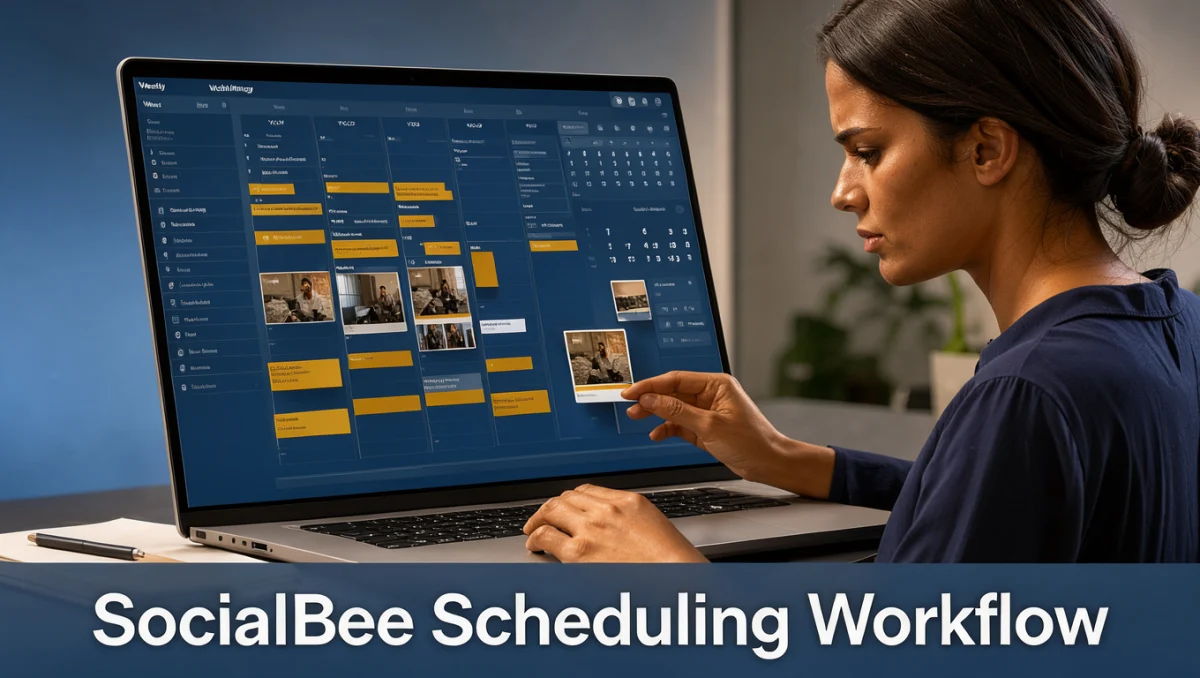
A well-organized publishing routine follows a clear order: connect platforms, define categories, assign calendar slots, and stage your content into the queue.
Step 1: Connect Your Social Profiles
Authorize each profile by following the authentication prompts in your workspace settings. Make sure every account has the correct managerial rights, because expired permissions can interrupt automated delivery. If you manage several client presences, group accounts into separate brand or project folders.
Step 2: Define Your Content Categories
Create distinct categories that reflect your core communication topics. Categories act as containers that determine when and how often each topic appears across your channels. For instance, you might keep separate categories for product announcements, thought leadership, customer stories, and community discussions.
Step 3: Set Your Category Posting Schedule
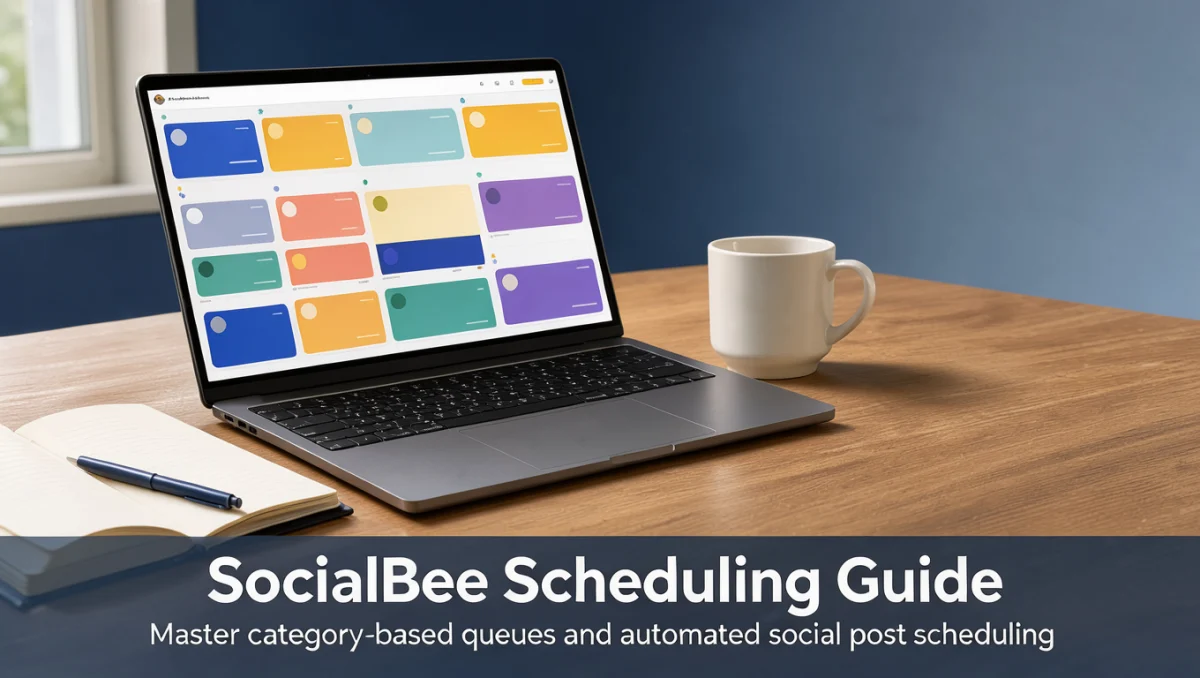
Assign specific days and time slots to each category. Rather than dating individual posts, category scheduling uses a recurring weekly calendar grid. When a time slot is linked to a category, the system automatically pulls the next available item from that container.
Step 4: Draft and Customize Post Content
Write your text, attach visuals, and adjust message lengths for each destination inside the draft composer. Tailor captions to each channel's conventions, keeping character counts and hashtags appropriate for every network.
Step 5: Configure Expiration and Evergreen Rules
Decide whether each update should publish once or cycle through the queue as reusable evergreen material. For time-sensitive announcements, set expiration dates so outdated notices stop publishing automatically once the promotional window closes.
4. Best Practices for Social Media Scheduling
Consistent management habits keep your content fresh, engaging, and aligned with your operating calendar.
- Balance your mix by avoiding a run of promotional posts in adjacent slots.
- Review evergreen content regularly to confirm links, product mentions, and references are still accurate.
- Adjust queue intervals around holidays, industry breaks, or major world events to keep messaging appropriate.
- Write several wording variations within each recurring category so audiences do not see identical copy repeatedly.
- Check destination specifications on the official SocialBee website to confirm video lengths and media formats meet current platform standards.
5. Common Mistakes to Avoid When Scheduling Posts
Automation streamlines communication, but a purely set-and-forget approach can cause consistency problems.
A frequent mistake is ignoring time zone alignment across workspaces. If your account defaults to one time zone while your audience lives in another, updates may go out during off-peak hours. Always verify your master workspace settings before confirming calendar slots.
Another common misstep is filling categories with identical copy. Even with evergreen recycling active, repetitive phrasing erodes engagement, so draft multiple caption variations for core themes. Remember to pause automated queues whenever a real-time crisis or sudden brand update needs immediate attention.
6. Frequently Asked Questions
What should buyers evaluate when comparing SocialBee with traditional calendar planners?
Decide whether your priority is continuous category-based queue publishing or visual single-slot drag-and-drop planning. Category-driven workflows suit businesses with recurring informational topics, while calendar-centric planners often fit teams managing distinct, one-off campaign dates. Choose the method that matches your content production pace.
How do content categories simplify social scheduling?
Categories group updates by subject and link them to preset weekly slots. Instead of choosing a date and time for each post, you add content to a category, and the system publishes it in the next scheduled window. This cuts down on repetitive manual scheduling.
What factors influence whether a team needs a larger subscription tier?
Higher tiers are usually driven by the number of social profiles, individual user permissions, and the need for separate client folders. Teams managing multiple brands should review tier breakdowns on the official SocialBee pricing page to confirm capacity.
Should evergreen recycling be used for all social content?
Evergreen recycling works best for timeless educational advice, core service overviews, and general brand stories. Avoid it for date-dependent promotions, seasonal announcements, or urgent company notices. Setting expiration dates keeps outdated information from being broadcast.
7. Final Verdict on Scheduling with SocialBee
SocialBee offers an organized, category-centric framework that suits creators and marketing teams seeking steady, recurring consistency across multiple channels.
| Evaluation Criterion | Score /10 | Reasoning |
|---|---|---|
| Features | 8.0/10 | Strong category scheduling, queue recycling logic, and multi-network drafting tools. |
| Ease of Use | 7.8/10 | Logical setup process, though category-based planning requires a modest conceptual shift for beginners. |
| Pricing and Value | 7.2/10 | Check profile allocations and workspace options on the official pricing page to judge overall value. |
| Integrations | 7.0/10 | Supports major social networks; verify specific connection requirements directly with the provider. |
| Audience Fit | 8.2/10 | Well targeted toward creators, service providers, and agencies managing steady weekly publishing. |
| Support | 7.1/10 | Review the help center documentation and official contact options before subscribing. |
| Competitive Position | 7.6/10 | Holds a distinct position focused on content queues alongside calendar-based alternatives such as Buffer and Hootsuite. |
Overall topappreviewsites Score: 7.6/10
For freelancers and solo creators, clear categories make daily visibility practical without hours of manual posting. For agencies and growing businesses, organizing workspaces and recurring queues saves considerable administrative time. If your workflow needs bespoke approval layers or frequent ad hoc publishing, compare category systems with traditional calendar software before deciding.
Have questions about setting up your social media workflow? Visit our guide to scheduling with SocialBee or reach out through the Top App Review Sites homepage.